10Stratum Server: users, security and AiSOC
This chapter is for the administrator of a Stratum Server. It tells you how to manage users, approve updates to P6, read the audit log, and connect the server to AiSOC.
Users and roles
Each person signs in to Stratum Server with an email address and a password. The role of the user sets what the user can do.
| Role | What the user can do |
|---|---|
| Admin | All work. Manage users, settings, security, approvals and the AiSOC connection. |
| Planner | Change projects, dashboards and reports. Ask for an update to P6. |
| Viewer | Read projects and dashboards. Get reports by email. |
To add or change a user
- Click Settings, then the Users tab.
- Click + Add user, or click edit on the line of the user.
- Type the name and the email address. Select the role.
- For a new user, type a password of 8 characters or more.
- In Reason, type why you make the change.The audit log keeps the reason.
- Click Save.
Sign-in protection
After 5 incorrect passwords from one computer, Stratum Server locks the sign-in of that account from that computer for 15 minutes. After 10 incorrect passwords from all computers, it locks the account for 15 minutes. The sign-in page shows the time to wait. Each incorrect password and each lock goes into the audit log.
STRATUM_TRUST_PROXY=1 on the server. Then the server sees the address of each user, not the address of the proxy.Approve updates to P6
An update to P6 changes data in a different system. Thus Stratum Server can keep each update until an administrator approves it. The administrator sees what the update contains, and approves only that content.
| Rule (Settings › Security) | Planner | Admin |
|---|---|---|
| Planners ask; an admin approves | The update waits for approval. | The update goes to P6 at once. |
| Everyone asks; an admin other than the requester approves | The update waits for approval. | The update waits. A different admin must approve it. |
| No approval | The update goes to P6 at once. | The update goes to P6 at once. |
The first rule is the default.
To set the rule
- Click Settings, then the Security tab.
- In Sending progress to Primavera P6, select the rule.The server saves the rule at once. The audit log keeps the old rule and the new rule.
To ask for an update (planner)
- Open the project that you imported from P6.
- In the P6 layout, click Project › Send Progress to P6. In the other layouts, click Update P6.
- Click OK.The status bar shows Sent for approval. Nothing goes to P6 yet.
To approve or reject an update (admin)
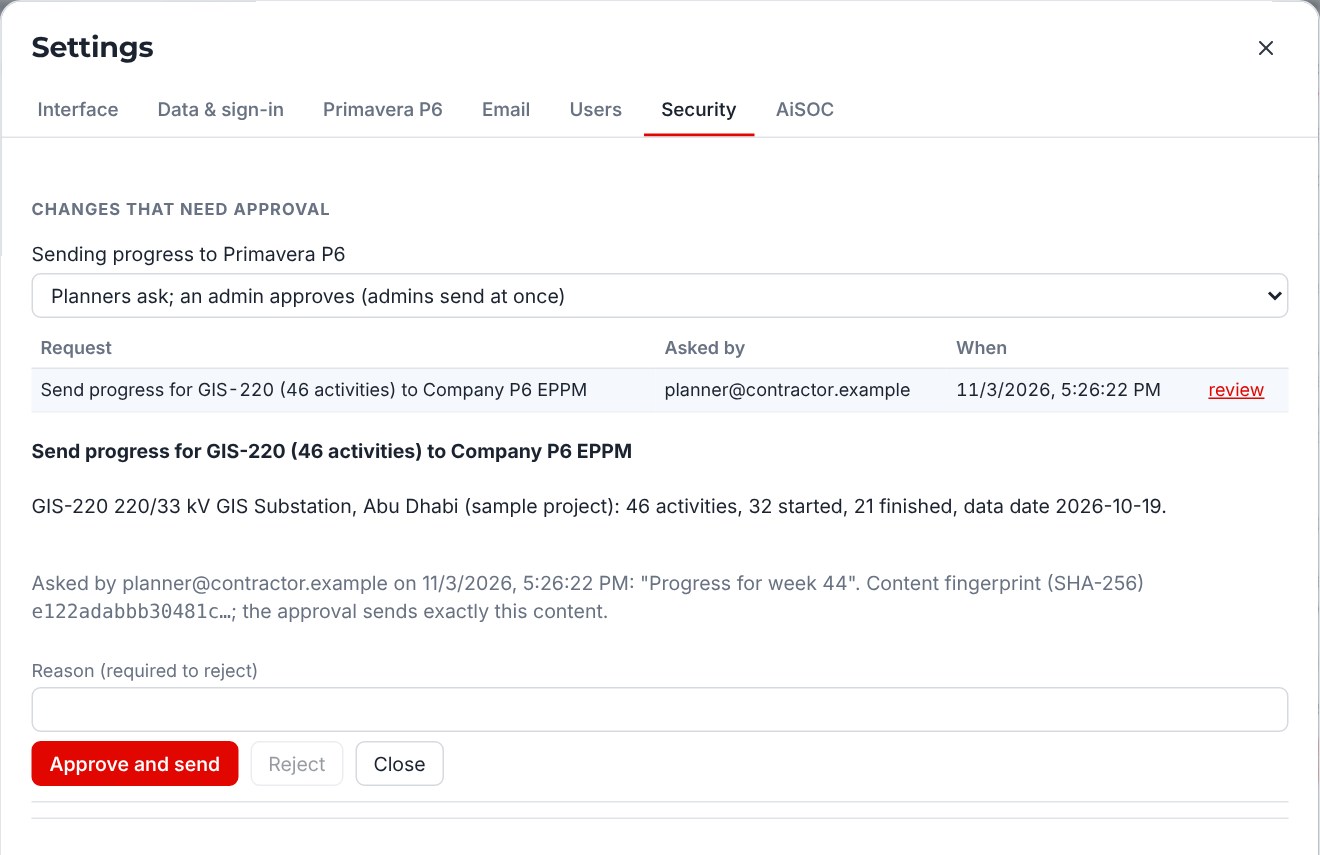
- Click Settings, then the Security tab.The table shows the requests that wait.
- Click review on the line of the request.
- Read the summary: the project, the number of activities, the started and finished activities, and the data date.
- To send the update, click Approve and send.Stratum Server sends the progress to P6 and shows the number of activities.
- To stop the update, type a reason. Then click Reject.
The audit log
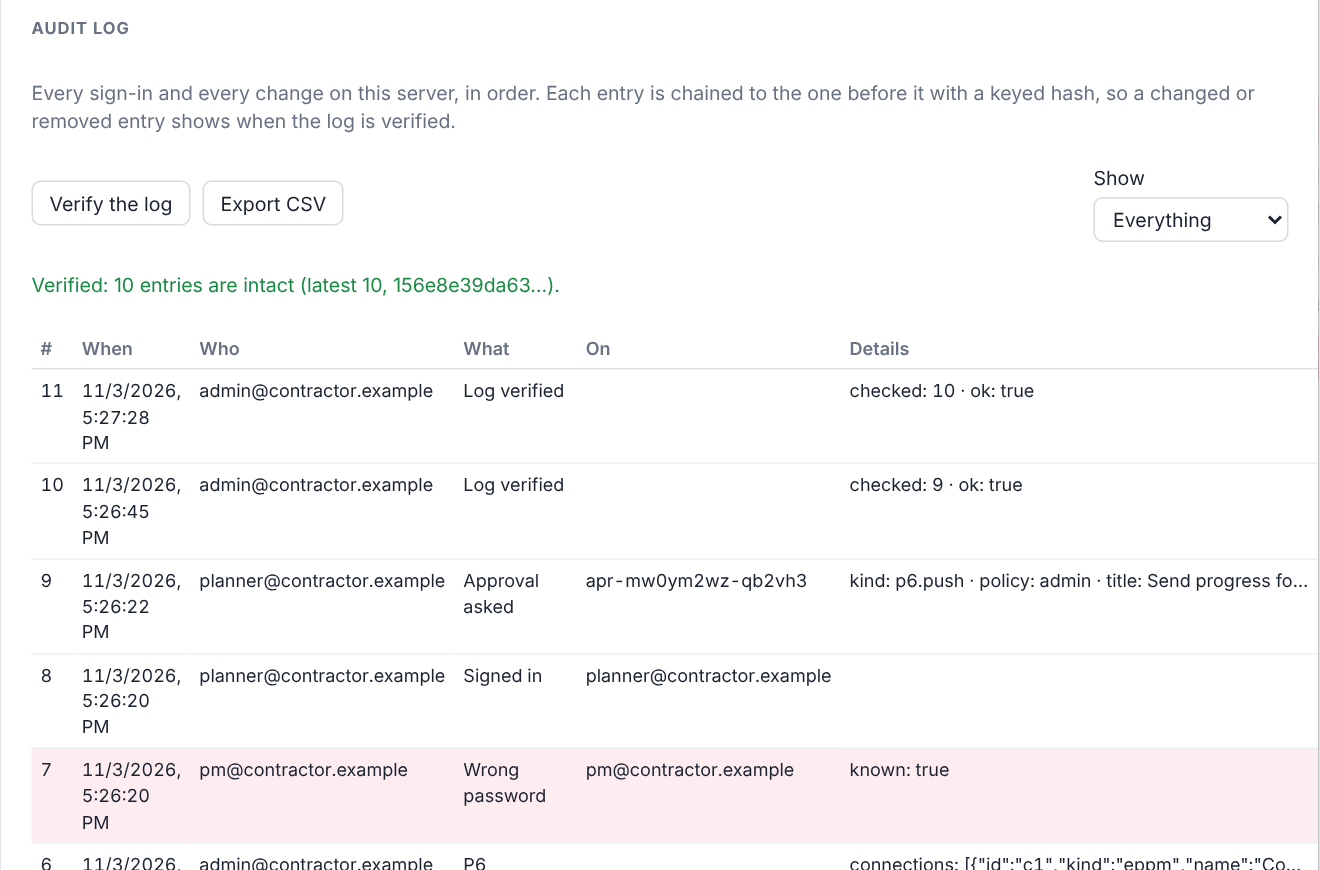
The audit log is a list of all sign-ins and all changes on the server. Each entry has the time, the user, the computer address, the action and the details. Passwords are not in the log. The log records only that a password changed.
Each entry contains a fingerprint of the entry before it. Thus a changed entry or a removed entry breaks the chain, and a check of the log finds it. The database also refuses to change the entries.
To read and check the audit log
- Click Settings, then the Security tab.
- In Show, select the type of entries, for example Sign-ins.
- Click Verify the log.A green line shows that all entries are correct. A red line shows the first entry that is not correct.
- To give the log to an auditor, click Export CSV.
Stratum Server also checks the log when it starts and one time each day. It writes the result and the last entry to its own log, outside the database. A chain cannot show that entries were cut from its end. Compare the last entry in the server log with the last entry that Verify the log shows.
To keep the log for a limited time
- On the Security tab, go to Keep audit entries.
- Select the period, for example 2 years.Each day, the server removes the entries that are older than the period.
Before it removes entries, the server writes a checkpoint. The checkpoint records how many entries went and the fingerprint of the last one. Thus the check of the log continues to work after the removal.
Connect to AiSOC
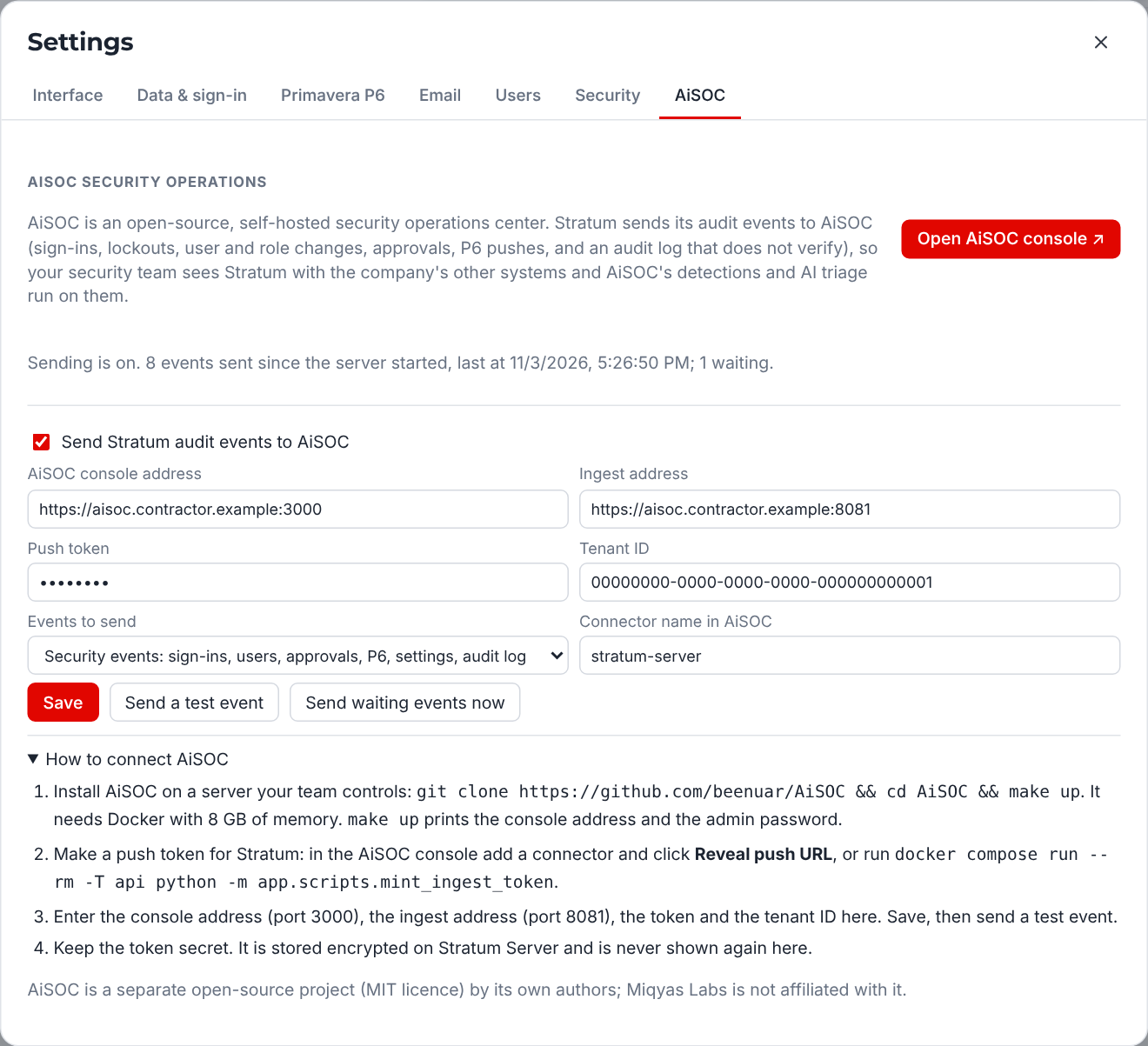
AiSOC is an open-source security operations center that you install on your own server. Stratum Server can send its audit events to AiSOC. Then your security team sees Stratum with the other systems of the company. AiSOC is a separate project, and Miqyas Labs is not related to it.
By default, Stratum sends only the security events. These are sign-ins, locks, changes to users and settings, approvals, updates to P6, and the checks of the audit log. Each event has a severity. For example, a locked sign-in is high, and a broken audit log is critical.
To install AiSOC
It is necessary to have a server with Docker, 8 GB of memory and 20 GB of free disk. Your IT team can do these steps.
- On the server, type
git clone https://github.com/beenuar/AiSOC. - Type
cd AiSOC, thenmake up.AiSOC starts. It shows the address of the console and the administrator password. - In the AiSOC console, add a connector for Stratum. Click Reveal push URL.AiSOC shows the push token.
To connect Stratum Server to AiSOC
- Click Settings, then the AiSOC tab.
- Type the address of the AiSOC console, for example
https://aisoc.company.local:3000. - Type the ingest address, for example
https://aisoc.company.local:8081. - Type the push token and the tenant ID from AiSOC.
- Select Send Stratum audit events to AiSOC.
- Click Save.
- Click Send a test event.A green line shows that AiSOC accepted the event.
To open the AiSOC console
- Click Settings, then the AiSOC tab.
- Click Open AiSOC console.The AiSOC console opens in a new tab.
- Sign in with your AiSOC account.